

LI Sports Network · Showcase Film
How to find & download your clips
Find your clips, watch them, and download whatever you want to send to college coaches. No account, nothing to install.
Every clip we filmed at the showcase is here — organized by team, player, and drill, and free to download. The day’s filming was already covered by the organization, so there’s nothing to buy and no login to create. You find your footage, watch it, and save the clips you want.
What makes this different: you get the actual footage — every rep, from multiple camera angles — not a short highlight reel that someone else picked for you. Watch a clip, trim just the moment you want, or download the whole thing — right in your browser on a phone or a computer. It’s all yours to keep and send anywhere.
Step by step
Open your showcase link
Tap the link in your email. It opens your showcase page — no sign-up, no app. It works the same on your phone or your computer.
Enter your password
Look for the 🔒 password-protected bar and tap Enter password, then type the password from your email or text. You only need to do this once on this device — it turns on watching and downloading for the whole showcase.

The password keeps each showcase private — most players are minors. Your coach or the event organizer sent it with your showcase link, so check that email or text.
Find your clips
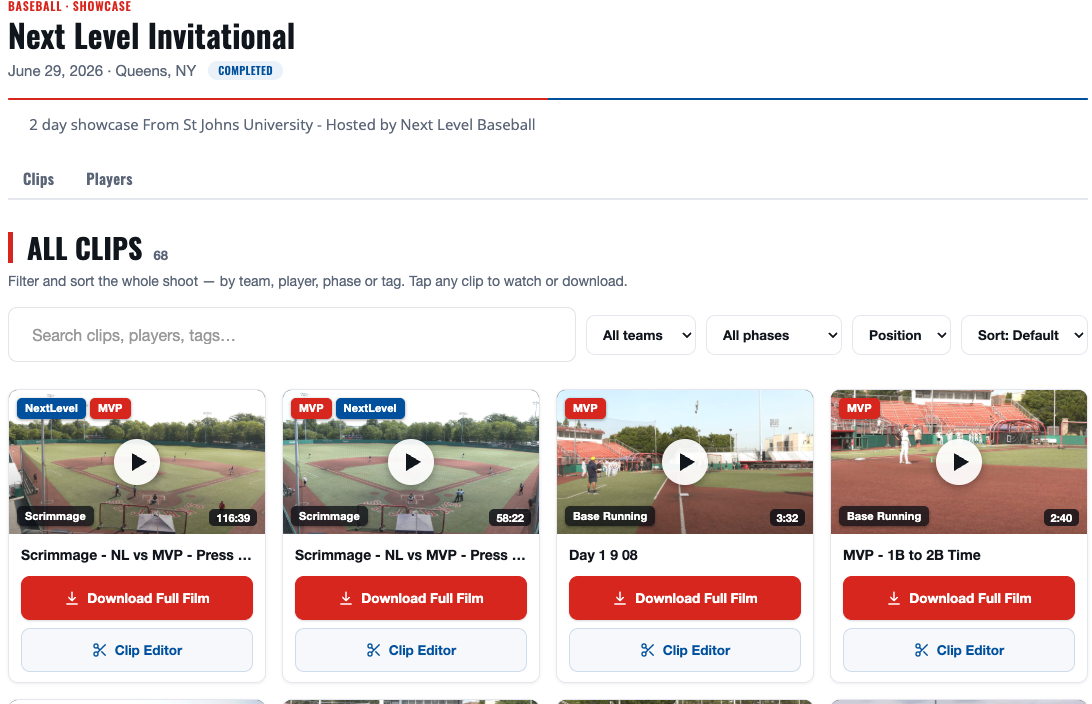
Under All Clips, use the search box or the Team Phase Position filters to narrow the list. Clips are labeled by drill and camera angle. For a scrimmage or game, pick your team first, then find the reps you were in.
Watch a clip
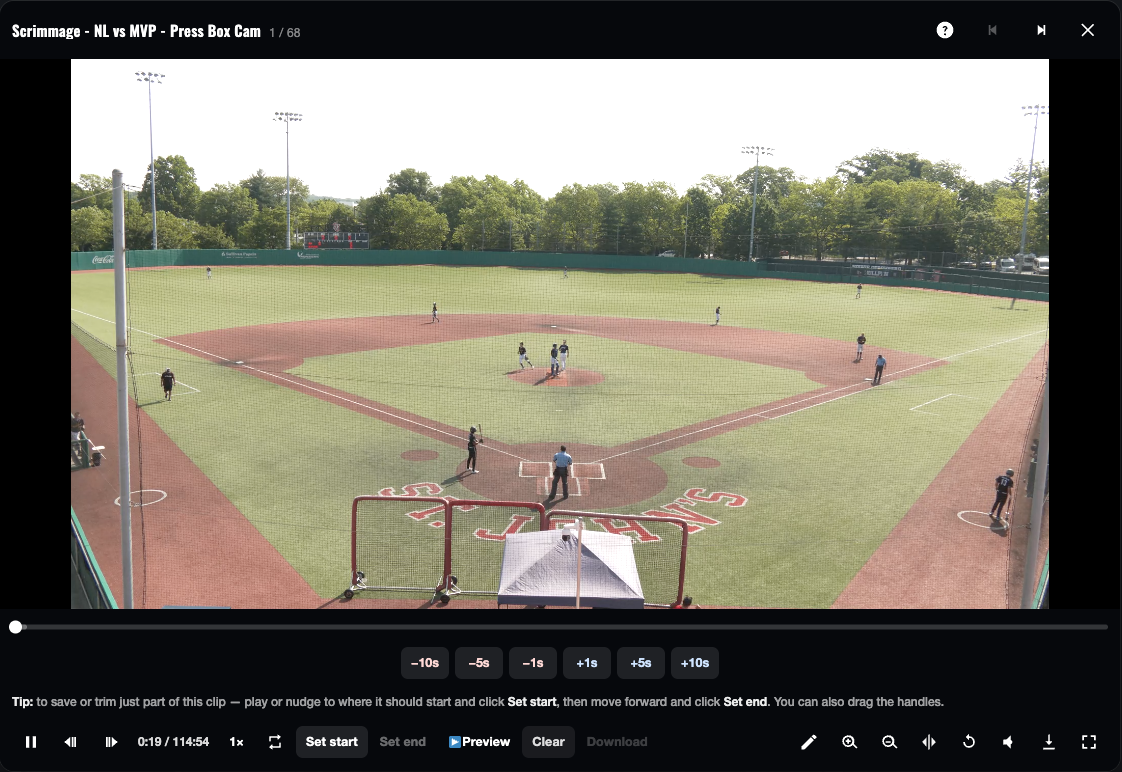
Tap the play button on any clip to watch it. Each clip is labeled with the drill and the camera angle, so you can pick the view you want.
Download it — a clip, not the whole game
✂ Clip Editor is the best way to get your player’s video. Open it on any clip, play or nudge to the start of your at-bat or play and tap Set start, go to the end and tap Set end, then Download. You get just that moment as a small file that’s ready in seconds and easy to text or email to a coach.
↓ Download Full Film saves the entire clip. It’s best for the short clips — a timed run, one drill, one round of BP — or when you truly want the whole game. For a full game, use a computer on Wi-Fi and leave the tab open until it finishes.
Send it to coaches
Downloaded clips are yours to keep. Attach them to an email, upload them to a recruiting profile, or share the link to your showcase page directly.
Want it cut into a finished recruiting video?
We can build a polished, multi-angle Custom Recruiting Video from your showcase footage. Reply to your showcase email, or contact michael@lisportsnetwork.com and we’ll take it from there.